
Best IPTV for IBO Player Pro 2026 (Setup & Subscription)
“If you are looking for the best IPTV for IBO Player Pro in 2026, you’ve come to the right place. While IBO Player is widely considered the most powerful media player for Windows and Mac, its performance is only as good as the stream source you provide. At Netptv.site, we offer a premium, high-speed IPTV subscription specifically optimized for IBO Player Pro, ensuring 4K stability, zero buffering, and a complete EPG (TV Guide) integration. Whether you are setting up on a PC or a MacBook, our service provides the most reliable connection to unlock the full potential of your player.”
Why We Are the Best IPTV Provider for IBO Player Pro
Fully Compatible with IBO Player Pro: No manual playlist editing—just enter your credentials and watch.
Anti-Freeze 10.0 Technology: Specifically optimized to prevent the “Loading” wheel often seen in third-party players.
4K Stream Support: IBO Player Pro is built for high resolution; our streams provide the bitrate to match it.
Automatic EPG Update: Our servers push the latest TV Guide directly to your IBO Player interface.
📥 Direct Download Links (NetPTV Verified)
To save you time, the NetPTV team has provided verified direct links for the latest 2026 versions of the app.
Windows Users: IBO Player for Windows Download (Direct Link) (Optimized for Windows 10 & 11)
Mac Users: IBO Player Mac Direct Link (Intel & Apple Silicon) (Compatible with M1, M2, and M3 chips)
💻 How to Setup IBO Player on Windows
Download: Use the IBO Player for Windows download link above.
Unzip the File: The download is a ZIP file. Right-click the downloaded folder and select “Extract File…” or use software like WinRAR/7-Zip to unzip the contents to your desktop.
Install: Open the unzipped folder and run the
.exesetup file. Follow the prompts to finish installation.Find Your DEVICE ID: Launch the app to see your Device ID and Device Key.
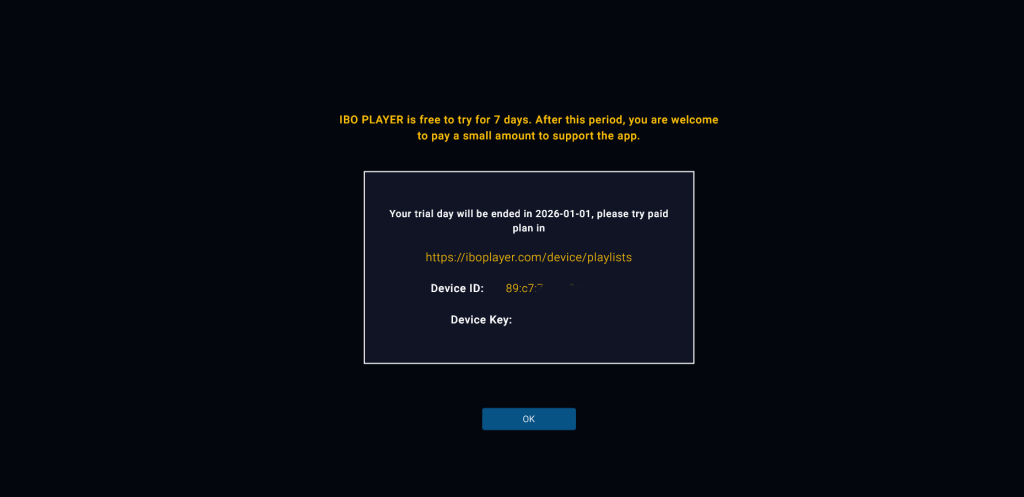
5. Upload Playlist: * Go to the IBO Player Management Portal.
Enter your Mac Address and Device Key.
Click “Add Playlist” and enter the Xtream Codes or M3U URL provided in your NetPTV subscription email.
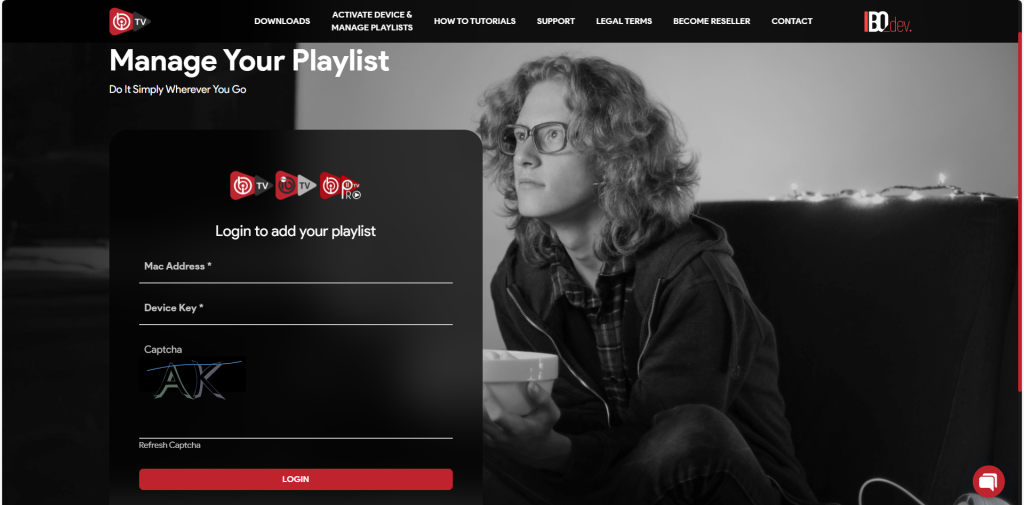
6. Start Streaming: Restart the app on your Windows PC to load your channels!
2. How to Setup IBO Player on Mac OS
For Apple users, the NetPTV Team provides a direct, optimized download link to ensure compatibility with both Intel and Apple Silicon (M1, M2, M3) chips. This version is specifically configured for high-performance streaming on Mac OS.
Direct Download: Click Here to Download IBO Player for Mac (Direct Link) .
Install: Once the
.dmgfile is downloaded, open it and drag the IBO Player icon into your Applications folder.Security Bypass: If Mac OS shows a “Developer Not Verified” warning:
Go to System Settings > Privacy & Security.
Scroll down and click “Open Anyway”.
Activation: Open the app to find your Device ID and Device Key.
Connect to NetPTV: * Visit the IBO Management Portal.
Input your Device ID/Key.
Paste your NetPTV M3U Link and click “Save.”
Watch: Click “Reload” inside the app on your Mac and start streaming.
🛠️ IBO Player Pro Troubleshooting: 2026 Guide
Even with the best IPTV for IBO Player Pro, app-specific issues can occasionally occur on Windows and Mac. Use this guide to fix common errors and get back to your 4K streams.
1. Error: “No Playlist Found” or “Invalid Playlist”
This is the most frequent issue when setting up a new service.
The Cause: Usually a typo in the M3U URL or an extra space at the end of the link.
The Fix: Log into the IBO Player management portal. Delete the old playlist and re-paste your NetPTV Xtream Codes or M3U Link. Ensure there are no spaces before or after the credentials.
Pro Tip: For the most stable connection, always use the Xtream Codes API method rather than a long M3U URL.
2. IBO Player Pro Stuck on “Loading” Screen
If the app opens but the channel list won’t populate:
The Fix for Windows: Right-click the IBO Player icon and select “Run as Administrator.”
The Fix for Mac: Check your macOS Firewall. Go to
System Settings > Network > Firewalland ensure IBO Player Pro is allowed.General Fix: Restart your Router. A fresh IP address often clears ISP connection blocks.
3. Buffering or Freezing on 4K Channels
If you have a high-speed premium IPTV subscription but still experience lagging:
Change Decoder: Go to IBO Player Settings > Player Settings. Toggle between “Hardware” and “Software” decoding. Hardware decoding uses your GPU and is usually smoother for 4K.
Check ISP Throttling: Some providers limit IPTV speeds. Try using a VPN to see if the buffering disappears instantly.
4. “Device ID Changed” or “App Expired”
The Cause: IBO Player Pro is a paid app with a 7-day trial. This error means your trial ended or your MAC address changed.
The Fix: You must activate IBO Player on their official website. Remember: activating the app is separate from your NetPTV subscription.
💡 Pro-Tips for the Best Experience in 2026
Hardwire Your Connection: For 8K and 4K content, a wired Ethernet cable is significantly more stable than Wi-Fi on Windows and Mac.
Regular Cache Clearing: Every few weeks, go to the app settings and click “Clear Cache” to keep the interface snappy.
Stay Updated: Always download the latest version from our IBO Player Download section to ensure compatibility with new 2026 streaming protocols.
Frequently Asked Questions (FAQ) – 2026 Edition
1. Is IBO Player free?
IBO Player Pro offers a 7-day free trial. After the trial expires, you must pay a one-time fee to activate the app permanently. Please note: This fee covers the application interface only. To watch content, you will still need the best IPTV for IBO Player Pro from NetPTV.site.
2. How do I activate IBO Player permanently?
Once your trial ends, visit the official IBO Player website and enter your Device ID and Key. You can then choose a lifetime activation. After the app is active, simply enter your NetPTV credentials to resume streaming.
3. Why is my IBO Player showing “No Playlist Found”?
This error typically occurs if the M3U URL was entered with a typo or if your IPTV subscription has expired. Double-check your credentials in your NetPTV.site dashboard and ensure there are no extra spaces at the beginning or end of your Xtream Codes login.
4. Can I use IBO Player on multiple computers?
IBO Player activation is tied to your specific Device ID (Hardware). If you wish to use the app on both a Windows PC and a MacBook, you will need to activate the app for each device. However, a NetPTV multi-room subscription allows you to use your IPTV service on both devices simultaneously.
5. Why should I use the IBO Player direct link for Mac?
Many download links found online are outdated or only support older Intel-based Macs. Our IBO Player Mac direct link is fully optimized for 2026, supporting the latest Apple Silicon (M1, M2, M3, and M4 chips) to ensure 4K playback without crashes.
6. How do I update my IBO Player on Windows?
To keep your player secure and fast, we recommend visiting NetPTV.site periodically. We constantly update our IBO Player for Windows download section with the latest 2026 stable releases, ensuring compatibility with Windows 11 and the latest security patches.
7. Why is my IBO Player on macOS showing a black screen?
If you hear audio but see a black screen, it is likely a video decoding conflict with your version of macOS (such as Sonoma or Sequoia).
The Fix: Open the app settings, navigate to “Video Decoder,” and switch from Hardware to Software (or vice versa). This is a common fix when using a premium IPTV subscription with high-bitrate 4K content.