
Best IPTV Service for Smarters Pro 2026 (Full Setup Guide)
IPTV Smarters Pro remains the gold standard for streaming in 2026, but the app is only as good as the service behind it. If you want to unlock 4K live sports, thousands of VODs, and an ultra-stable connection, you need the best IPTV service for Smarters Pro.
At NetPTV.site, we provide a premium infrastructure specifically optimized for the Smarters Pro interface. Whether you are using a Firestick, Android Box, or Smart TV, our 2026 server updates ensure you get “Anti-Freeze” technology and instant channel switching.
Why NetPTV is the Best IPTV Service for Smarters Pro in 2026
Before we get to the setup, here is why thousands of users choose our subscription:
Optimized for Smarters Pro: Our Xtream Codes API integrates perfectly with Smarters Pro for fast EPG loading.
FHD/4K Resolution: We provide high-bitrate streams that take full advantage of the Smarters Pro player.
24/7 Server Monitoring: Our 2026 “No-Lag” architecture prevents buffering during major live events like the Premier League or UFC.
Instant Activation: Buy your subscription and get your Smarters Pro login details in less than 60 seconds.
How to Set Up Smarters Pro with the Best IPTV Service (Step-by-Step)
This tutorial for IPTV Smarters assumes you have already purchased a subscription from an IPTV service provider and have received your login credentials, which typically include:
A Portal URL (or Server URL)
A Username
A Password
Step 1: Install the IPTV Smarters Pro App
First, you need to download and install the app on your streaming device:
For Android Phones/Tablets & Android TV: Go to the Google Play Store, search for “IPTV Smarters Pro,” and click Install. NETPTV team also provide APK file for those users do not access to the free version of IPTV Smarters by clicking here.
For iOS Devices (iPhone/iPad): Go to the Apple App Store, search for “IPTV Smarters Pro” (or “Smarters Player Lite”), and click Get.
For Amazon Firestick/Fire TV: The process is slightly different as you may need to sideload the app using an application like Downloader. Once you have Downloader installed, you’ll enter a specific code (this code varies, so check the latest instructions from your provider or a reliable tech site) to download and install the APK file.
For Windows/Mac: Visit the official IPTV Smarters Pro website to download the appropriate desktop version.
Step 2: Launch and Initial Configuration
Open the IPTV Smarters Pro app once the installation is complete.
Review and Accept the Terms and Conditions.
The app may ask you to select a layout. For TV streaming devices, select the TV option and click Save.
Step 3: Log In with Your Provider Details
When you get to the login screen, you will typically see two main options to add your service. The easiest and most recommended method is Login with Xtream Codes API.
Select Login with Xtream Codes API.
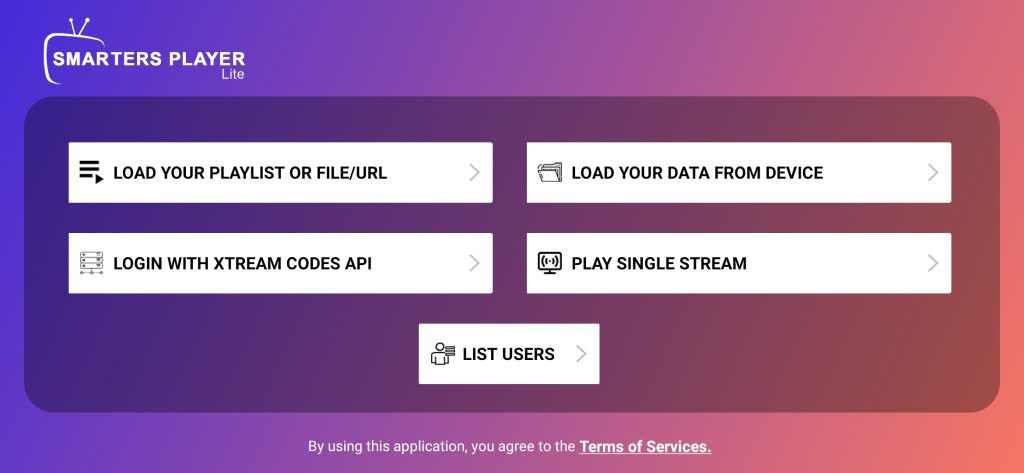
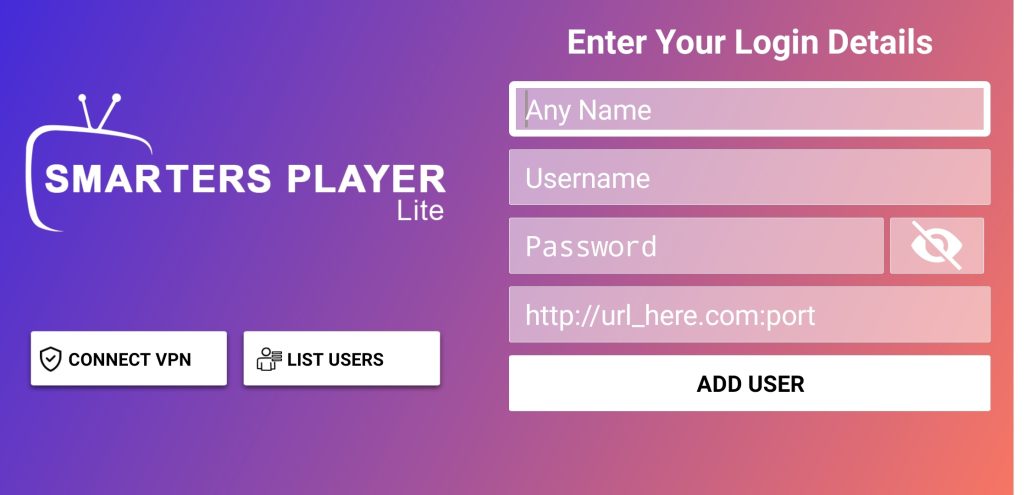
2. You will see several fields to fill out:
.Purchase your IPTV subscription at NetPTV today
Any Name: Enter a name to easily identify your playlist/service (e.g., “My IPTV Service”).
Username: Enter the Username provided by your IPTV service provider.
Password: Enter the Password provided by your IPTV service provider.
http://url_server: Enter the Portal URL (or Server URL) provided by your IPTV service provider. This URL usually looks something like
http://address.com:port.
4. Double-check all the details for typos, as they must be exactly correct.
5. Click the Add User or Add button.
Step 4: Loading and Enjoying Content
The app will begin Downloading Channels and Movies/Series. Wait for the process to complete, and you should see a “User added successfully” message.
You will now be taken to the main dashboard.
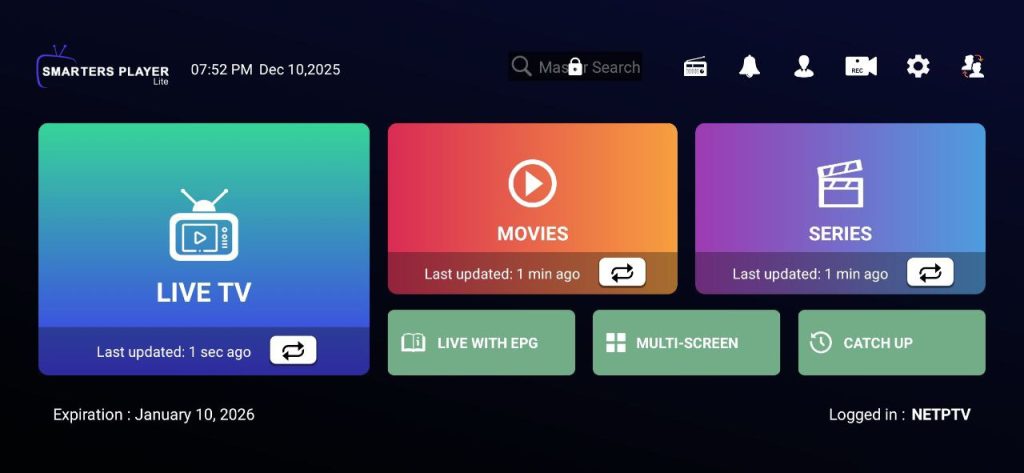
3. Select the Live TV, Movies, or Series sections to browse your content.
4. If your provider offers an Electronic Program Guide (EPG), it should load automatically with the Xtream Codes login. If not, you may need to find the EPG settings in the main menu to manually add the EPG URL provided by your service.
⚙️ Quick Tips for a Better Experience
Favorites: You can usually mark channels as favorites (often by clicking a heart icon) to access them quickly from the main menu.
EPG (Electronic Program Guide): The EPG gives you a TV guide layout of all the channels and show times. Check the settings if it doesn’t appear automatically.
Change Player/Settings: The app offers various settings to customize the viewing experience, change the video player, or set up parental controls.
For better understanding, this video will show you how to setup IPTV Smarters on your device.
Frequently Asked Questions
1. What details do I need before I start the setup?
To use the tutorial, you must have a subscription from an IPTV provider. They should provide you with three specific pieces of information:
A Portal/Server URL (e.g.,
http://address.com:port)A Username
A Password
2. Where can I download the IPTV Smarters Pro app?
Android: Available on the Google Play Store. NetPTV also provides a direct APK file link for users who cannot access the official store.
iOS (iPhone/iPad): Search for “IPTV Smarters Pro” or “Smarters Player Lite” in the Apple App Store.
Firestick: You must use the “Downloader” app to sideload the APK file.
Windows/Mac: Download the desktop version directly from the official IPTV Smarters website.
3. Which login method should I choose?
The tutorial recommends using the “Login with Xtream Codes API” method. It is the easiest way to sync your channels, movies, and EPG (TV Guide) automatically.
4. What do I enter in the “Any Name” field?
This field is for your own reference. You can type anything you like, such as “My IPTV” or “NetPTV,” to identify the playlist.
5. Why is my content not loading after I click “Add User”?
If you see an error, check for the following:
Typos: Ensure there are no extra spaces or spelling errors in the Username, Password, or URL.
URL Format: Ensure the Server URL includes the
http://prefix and the port number (e.g.,:8080) if provided.Internet Connection: Ensure your device is connected to a stable internet source.
6. How do I get the TV Guide (EPG) to work?
When using the Xtream Codes API method, the EPG usually loads automatically. If it doesn’t, you can go to the app’s Settings or the Install EPG button on the dashboard to manually refresh or add the EPG URL provided by your service.
7. Can I use external players like VLC or MX Player?
Yes. The app allows you to change the built-in player. You can navigate to Settings > Player Selection to add and select external players like VLC or MX Player for better compatibility with certain video formats.
8. How do I save my favorite channels?
Most versions of the app allow you to “Favorite” a channel by long-pressing the channel name or clicking the Heart icon. These will then appear in a dedicated “Favorites” folder for quick access.